WF 05
Attractor Fields
Grasshopper · Dispatch & Remap → Line Field
Weeks9 – 10
Site50 × 50 ft
LogicDispatch · Remap
DueThu Nov 12
AssignmentOne Grasshopper definition that encodes two landscape rules on the same meadow — a mown path (Dispatch) and wet areas (Remap) — submitted as Week 9 and Week 10 viewport screenshots plus one slider study showing how a parameter changes the spatial outcome.
Rhino
→
Populate 2D
→
Rule
→
Line Field
A flat meadow. Two parametric rules encode two landscape conditions — a mown path, and wet areas. The same field, two rules, two spatial readings.
This workflow introduces the core logic of parametric design: write the rule first, then build it in nodes.
Week 9 — Mowing Path
A
Pseudocode First
On paper — no computers
Before opening Grasshopper, write this rule on paper:
FOR EACH plant in meadow:
  IF distance to path < mowing width
    THEN height = mowed (short)
  ELSE height = unmowed (tall, random)
Identify: what is the input, what is the condition, what are the two outputs.
01
Set Up the Meadow
GH
Construct the site boundary in Grasshopper — 50 × 50 ft. No need to draw in Rhino:
- Rectangle → set X and Y domains to 0 to 50 (use a Construct Domain or a Panel)
- Populate 2D → the Rectangle as region
- Count slider → start at 200
- Seed slider → controls the random distribution
02
Random Heights (Unmowed)
GH
Give every plant a random unmowed height:
- Random → domain via a Panel typed 0.5 to 6.0 (grass height range); set Number (N) to the same Count as Populate 2D
- Line SDL → start = Populate 2D points, direction = unit Z, length = Random
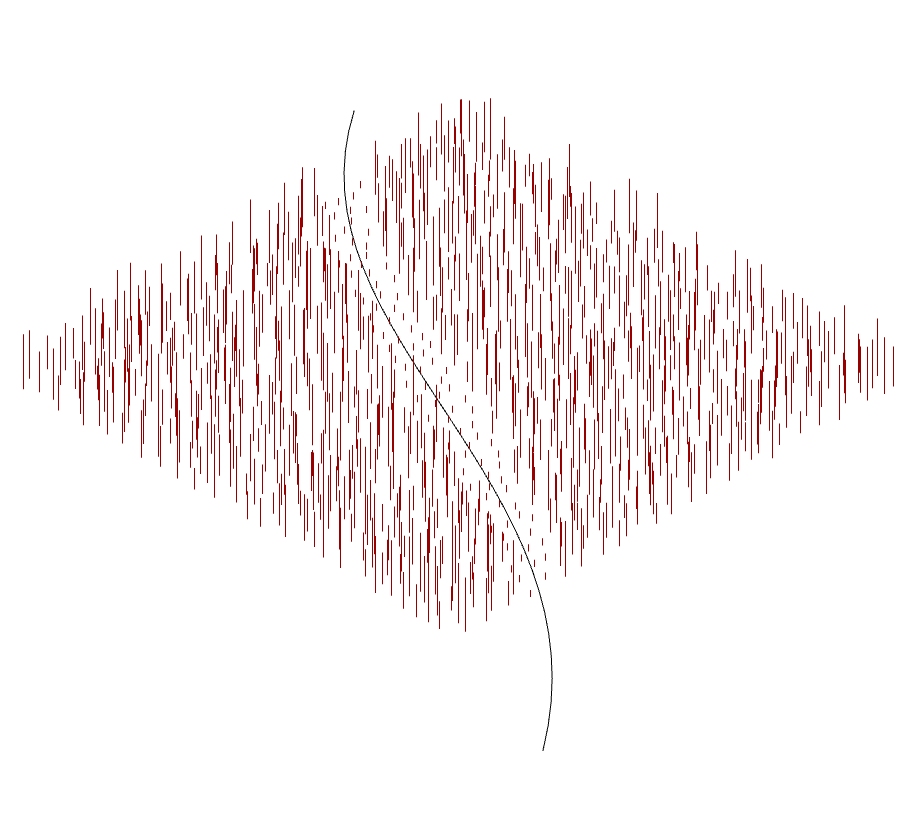
You now have a meadow — a field of vertical lines of varying height.
03
Draw + Measure the Path
Rhino
GH
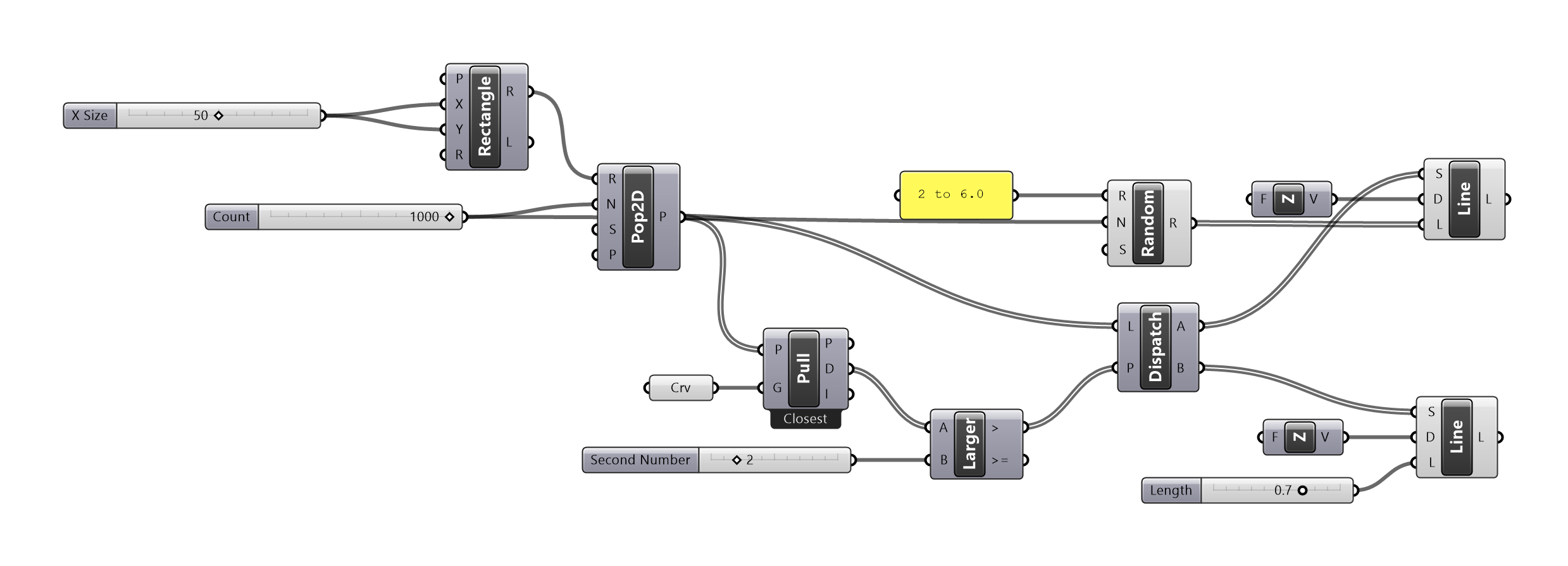
In Rhino, draw a curve across the site — polyline or arc. Reference it into GH with a Curve parameter, then measure how far each plant sits from it:
- Pull Point → input points = Populate 2D points, geometry = path curve
- Use the Distance output directly — one component does both
Same component as the Week 10 wet areas — Pull Point pulls to any geometry (curve here, points there) and returns the distance.
04
Apply the Rule — Dispatch
GH
Split the meadow into mown and unmown by the threshold:
- Larger Than → A = distance to path, B = mowing width slider (start at 8.0)
- Dispatch (heights) → data = random heights, pattern = Larger Than → List A = unmowed, List B = mowed
- Dispatch (points) → data = Populate 2D points, same pattern → List A = unmowed points, List B = mowed points
- List B heights → replace with a short fixed height slider (0.5); rebuild a Line SDL for the mowed branch
Both height and point lists are dispatched with the same pattern — the two lists stay in sync. List A points carry forward into Week 10. End of Week 9.
▸ Hint Week 9
Week 10 — Wet Areas
B
Pseudocode First
On paper — no computers
FOR EACH plant in meadow:
  height = remap(distance to nearest wet area, 0 → max, tall → short)
Close to a wet area = tall (wet, lush). Far from a wet area = short (dry).
05
Place Wet-Area Attractors
Rhino
GH
In Rhino, place 2–4 point objects on the site — these are the wet area locations. Reference them into GH with a Point parameter. Then find the nearest wet area for each unmowed plant:
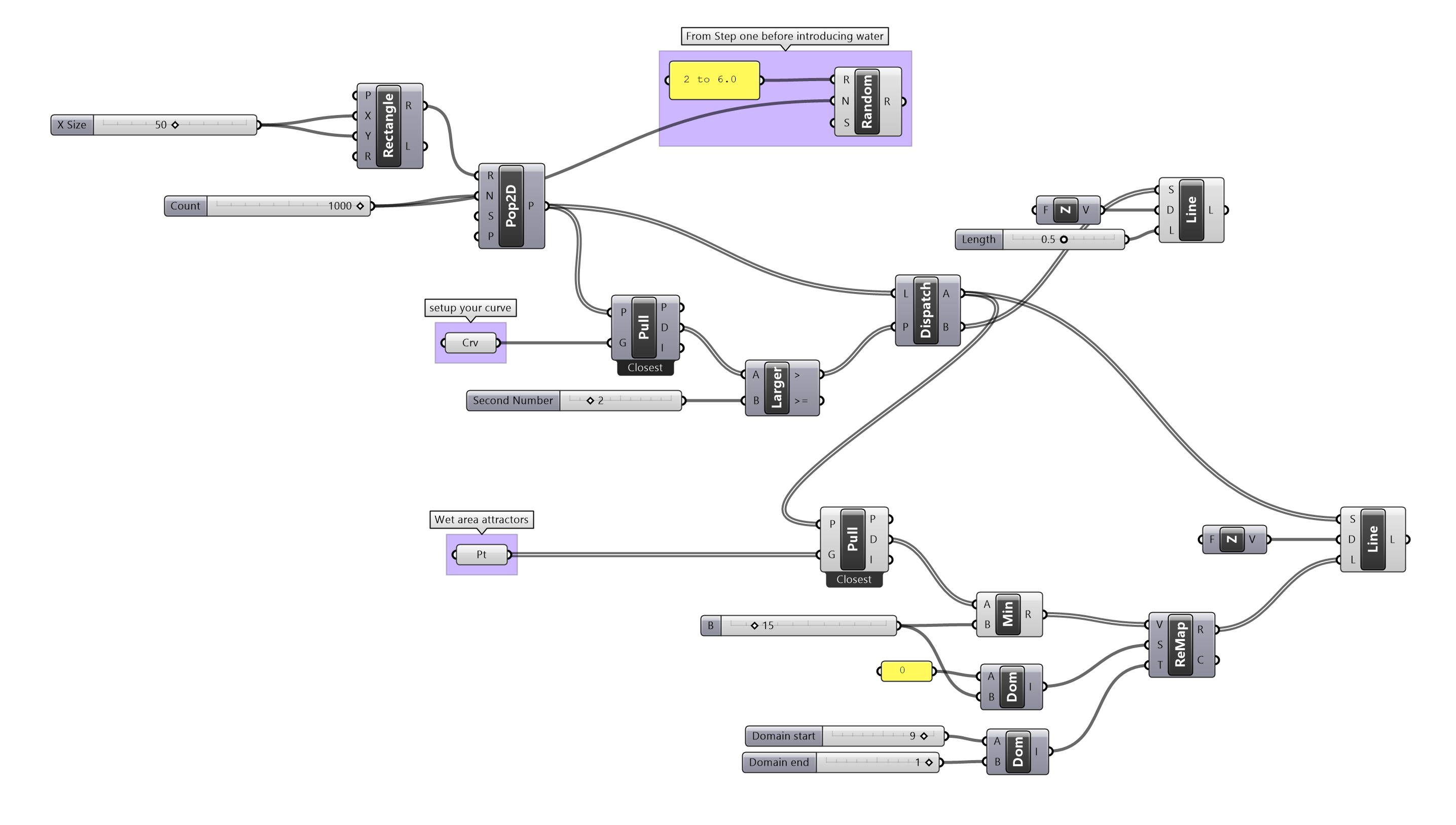
- Pull Point → input points = List A points (unmowed, from Step 04 Dispatch), geometry = wet area attractors
- Distance → each unmowed plant to its pulled (nearest) wet area point
06
Remap to Height
GH
Turn distance into a height gradient, capped at a maximum influence radius:
- Three sliders: Max Radius (default 15 ft), Height Near (default 1.0), Height Far (default 0.2)
- Minimum → A = distances (from Distance), B = Max Radius slider → output = capped distances (GH broadcasts the single slider value across the whole list)
- Construct Domain (source) → A = 0, B = Max Radius → fixed source domain
- Construct Domain (target) → A = Height Near, B = Height Far → target domain
- Remap Numbers → values = output from Minimum, source = source domain, target = target domain
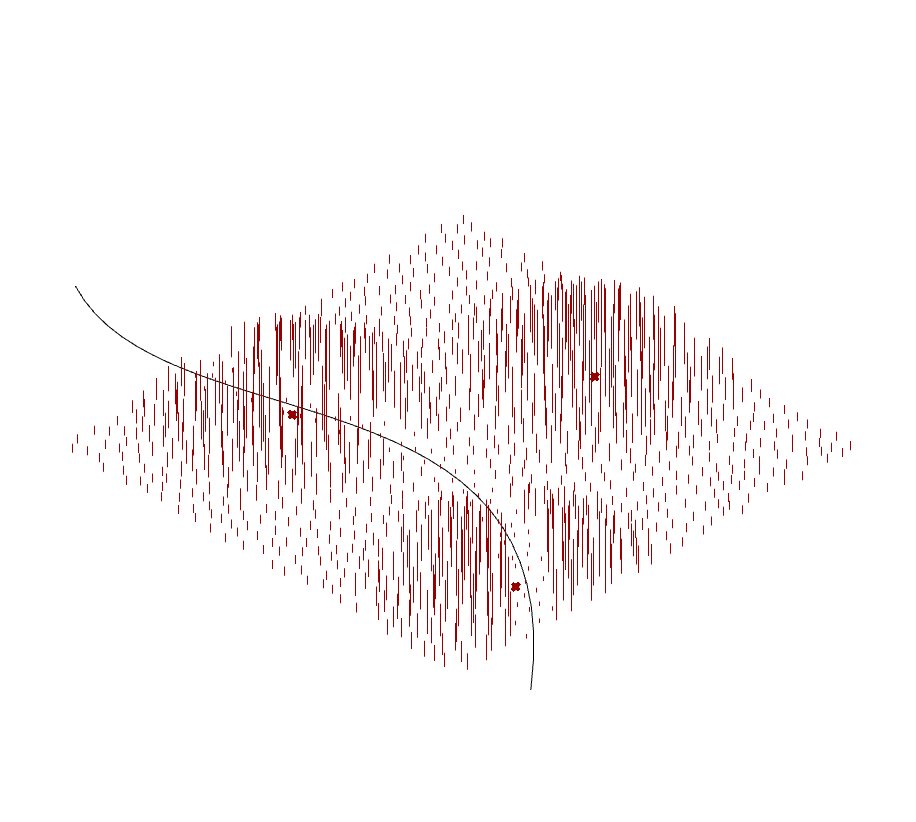
Plants inside the radius get a gradient; plants outside all map to exactly Height Far. Moving a wet-area point creates a visible zone with a clear edge between lush and dry.
07
Draw Plant Heights
GH
Same as Week 9 — draw each plant as a vertical line, length = remapped height:
- Line SDL → start = Populate 2D points, direction = unit Z, length = remapped height
Tall lines near wet areas, short lines further away. The gradient reads immediately in the viewport.
08
Preview + Adjust
Rhino
- Move a wet area point in Rhino — the tall cluster shifts live
- Add or remove wet area points — each makes a new zone of lush growth
- Slide Height Near or Height Far to change the height contrast live
▸ Hint Week 10
Key Concepts
Populate 2D vs. grid — Populate 2D distributes points organically within a boundary. The Seed slider changes the distribution without changing the count. It reads as a natural meadow, not a tile pattern.
Dispatch vs. Remap — Dispatch encodes a binary rule (mow / no mow). Remap encodes a continuous gradient (tall near water, short away). Most landscape conditions are gradients; the binary is the readable edge.
Pull Point — works like Closest Point: for each input point, finds the nearest geometry in a set and returns its location. Used here to measure proximity to the nearest wet area across multiple attractors.
Line SDL — the same component used in Week 9. Start point, direction, length. Swapping the length input from Random to a Remap value is the only change — the drawing logic stays identical.
Pseudocode → Node Reference
| Pseudocode | GH component |
|---|---|
| for each plant in meadow | Populate 2D |
| distance to path | Pull Point |
| if / else | Larger Than + Dispatch |
| distance to nearest wet area | Pull Point + Distance |
| remap to height | Remap Numbers |
| draw plant | Line SDL |
Tips
- Write the rule on paper before touching a node. The pseudocode is the design.
- Dispatch is the readable edge; Remap is the gradient. Know which one the condition wants.
- Set hints and watch the preview live — drag a slider and read the change before moving on.
- Label your slider values in the screenshots. The deliverable is the relationship, not the picture.